


 Get 0.05 TON 💎
Earlier Versions
| Name | Size | Uploaded | Game Version | Downloads | |
| accessibilityplus-1.4 release | 455.35 KB | Jul 18, 2021 | 1.17.1 | 0 |  Download Download |
| accessibilityplus-1.3.jar release | 416.76 KB | May 29, 2021 | 1.16.3 | 74 | Download |
| accessibilityplus-1.2.1.jar release | 406.71 KB | Jan 2, 2021 | 1.16.3 | 101 | Download |
| accessibilityplus-1.2.0.jar release | 406.71 KB | Dec 28, 2020 | 1.16.3 | 10 | Download |
| accessibilityplus-1.1.0.jar release | 399.00 KB | Dec 6, 2020 | 1.16.3 | 20 | Download |
| accessibilityplus-1.0.0.jar release | 286.46 KB | Nov 23, 2020 | 1.16.3 | 28 | Download |
Description
Accessibility Plus
A Minecraft Fabric mod to enhance your gameplay experience with better accessibility features.
Download · Report Bug · Request Feature
About The Project
This project was started because I couldn't identify most blocks, I lost the ores when mining, I couldn't read the signs' text, I couldn't identify the items on my inventory because I play with a lot of zoom and couldn't read any enchantments because of the zoom.
This mod enhances the narrator functionality to easily identify the world around you and any inventory!
Features:
- Read the block you are looking at.
- Read the action bar text. Example: You can only sleep at night or during thunderstorms.
In any inventory when hovering over an item:
- Read the amount of that item
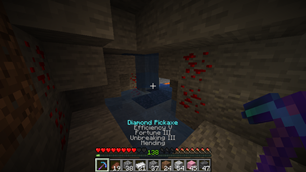
- Read the entire tooltip (item name, enchantments, custom text like book authors and server items).
- Use the keyboard to navigate and use the inventories.
- Use NVDA instead of the default narrator on Windows
I'm planning to add more sound cues and narratable text in the future to better identify the Minecraft world.
This mod helped me a lot when playing on servers because they use a lot of signs and custom text on their items.
Getting Started
This mod is for Fabric, so you must install it before using this mod, it also requires a library called Fabric API, most mods use it.
Prerequisites
Install Fabric for Minecraft 1.16.3: https://fabricmc.net/use/
Make sure to run Minecraft at least once for the mods folder to be generated.
Installation
- Download the latest version of the Accessibility Plus mod from https://www.curseforge.com/minecraft/mc-mods/accessibility-plus .
- Remember to delete the old version if you have the mod already installed.
- Download Fabric API for 1.16 from https://www.curseforge.com/minecraft/mc-mods/fabric-api/files .
- Open the Downloads folder and copy both files.
- Press Win + R to open the Run box and type
%appdata%\.minecraft\modsand press Enter. - Paste the files in this folder.
- Open Minecraft and enable the Narrator with Ctrl + B
To enable NVDA narration on Windows
- Make sure you have NVDA installed and enabled, you can download it from https://www.nvaccess.org/download/ .
- Download the DLL corresponding to your operating system's bit version:
- For Windows 32 bits download nvdaControllerClient32.dll
- For Windows 64 bits download nvdaControllerClient64.dll
- Copy the file nvdaControllerClient##.dll from the Downloads folder.
- Go to the Minecraft folder pressing Win + R to open the Run box and typing
%appdata%\.minecraft - Paste the DLL in this folder.
- Run the game as usual.
Usage
Simply look at a block to narrate it, hover over items in your inventory to narrate them and whenever a message is shown on your action bar it will be read automatically.
Press the N key in game to open the configuration.
Inventory keyboard navigation
Inventories are all the blocks and your own inventory where you store or process items. Pressing the letter E opens your own inventory, right clicking a crafting table in the world opens the crafting menu, right clicking a furnace in the world opens the furnace menu.
Most inventories have multiple grids, for example, the crafting table has a 3×3 grid for the crafting input, a 1×1 grid for the crafting output, a 9×3 grid for your inventory items and a 9×1 grid for your hotbar, each one of these grids is called a group, sometimes they have a name and sometimes they don't. Your player inventory has a 1×1 crafting output, a 2×2 crafting input, a 1×4 armor group, a 1×1 off-hand group, a 9×3 inventory and a 9×1 hotbar groups.
Each group is made of slots and you navigate them with the arrow keys. To navigate between groups use the Tab key to go forward and Shift + Tab keys to go backwards.
To grab a stack of items in a slot press Z, press Z again to leave the stack on the slot. If you leave the stack on a slot where there was an item already you will swap the stack you are holding with the stack in the slot.
To grab half of the stack in the current slot press X, to leave one single item from the stack you are currently holding on to the slot press X.
Here are all the keybindings for inventory keyboard navigation:
- Up arrow: Focus the slot above.
- Down arrow: Focus the slot below.
- Left arrow: Focus the slot to the left.
- Right arrow: Focus the slot to the right.
- Home: Focus the first slot in the group.
- End: Focus the last slot in the group.
- Tab: Go to next group.
- Shift + Tab: Go to previous group.
- Shift + Home: Go to the first group.
- Shift + End: Go to the last group.
- Z: Make a mouse click.
- X: Make a mouse right click.
There are different inventories that don't work exactly the same as the other, thanks to shoaib11120, we have access to more of them:
- Stonecutter screen
- Trading Screen
- Recipe book screen for crafting inventory and player inventory
- Lectern and book screen (only for book reading ui and when the book is in main hand)
- Enchanting table screen
Note: Keyboard navigation works best for these screens when in full screen mode and may not even work in when not in full screen mode or when in maximize mode.
Keybindings for these screens
Common:/p<>
- W = Move up a row
- S = Move down a row
- A = Move left a column
- D = Move right a column
Trading screen specific:
- R = Scroll up by 1
- F = Scroll down by 1
Recipe book screen specific:
- R = Next Page
- F = Previous Page
- C = Open/Close Recipe Book
- V = Toggle between show all and show craftable
- Enter = to disable searching mode
Lectern/Book screen specific:
- R = Read current page
- A = previous page
- D = next page
Enchanting Table specific:
- W = previous enchant
- S = next enchant
How to search in crafting inventory or player inventory
Press T, while in the player inventory or crafting table inventory while recipe book is open and u will go into search mode. All keybindings will be disabled while in search mode. After typing the name press enter and search mode will be disabled.
Contact
- Discord – luissanchezdev#6247
- Discord server – https://discord.gg/3SzpZz7
- luis.sanchez.dev@hotmail.com
License
Licensed under MIT Copyright (C) 2020 Luis Sanchez

Add a comment