


 Get 0.05 TON 💎
Earlier Versions
| Name | Size | Uploaded | Game Version | Downloads | |
| buildvox-fabric-1.1.0.jar release | 2.89 MB | Jul 16, 2022 | 1.18.1 | 0 |  Download Download |
| buildvox-fabric-1.0.0.jar release | 2.86 MB | Jul 6, 2022 | 1.18.1 | 5 | Download |
| BuildVoxFabric-1.0.0-beta4.0.jar beta | 2.82 MB | Apr 29, 2022 | 1.18.1 | 28 | Download |
| BuildVoxFabric-1.0.0-beta3.0.jar beta | 2.81 MB | Mar 24, 2022 | 1.18.1 | 22 | Download |
| BuildVoxFabric-1.0.0-beta2.0.jar beta | 5.51 MB | Mar 11, 2022 | 1.18.1 | 27 | Download |
| BuildVoxFabric-1.0.0-beta1.1.jar beta | 5.50 MB | Mar 7, 2022 | 1.18.1 | 16 | Download |
Description
> This description is copy from BuildVox Wiki , and it is not guaranteed that this page is up-to-date.
=========================================================================================================
This wiki is for in-game usage of BuildVox mod/plugin.
> This project is Beta! Some features may change rapidly until the official version(v1.0.0) is released.
In this wiki, the both term “mod” and “plugin” will be called as “add-on”.
Introduction of BuildVox
BuildVox is an add-on that is designed to edit voxels of minecraft world. The following list is some examples of the editings.
* Copy, cut, and paste blocks
Copy, cut, and paste are the basic operations in editing add-on. BuildVox also provides you with the ability to do these operations.
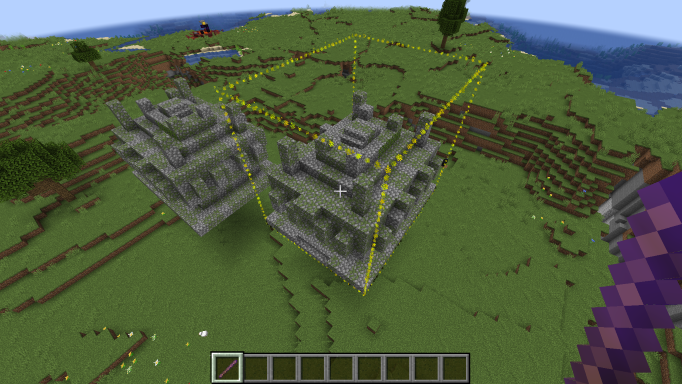
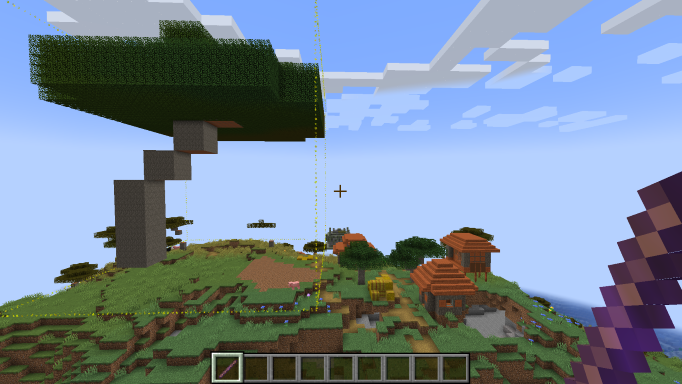
* Affine transform selelcted blocks
Affine trasformations of selected blocks are powerful edits that you can do by this add-on. The following image is an example of scaling.
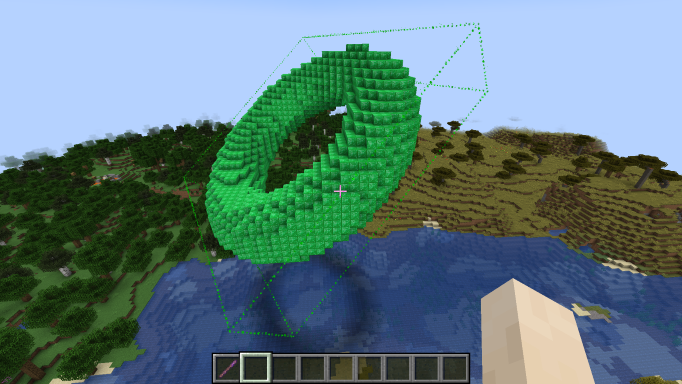
* Make shapes
Making shapes are other powerful edits of BuildVox. You can do not only set blocks in the specified region, but also affine transform the set blocks or change percentage of the block settings.
Show Command Help in-Game
This wiki will not cover all the commands, because writing helps in both code and wiki is duplicated, and keeping both sides consistent is painful. Generally, you have to find a command suitable for you and learn its syntax by your own in-game. You can easily do this by putting “-h” or “–help” flag in the commandline. The 2 cases of using -h flag are expalined in the following passages; the root command help and the nested subcommand help.
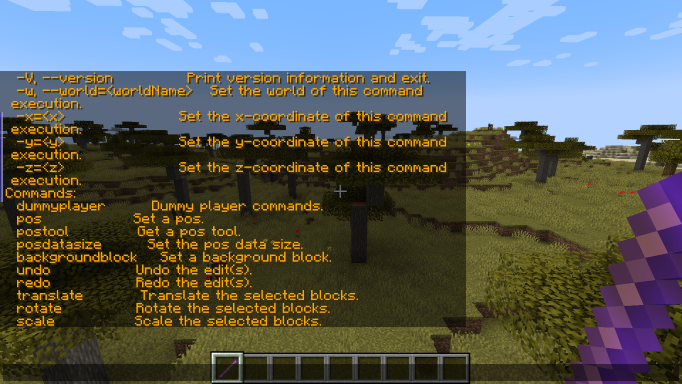
The root command help
All the commands of this add-on start with “/bv”. Run “/bv -h” to see all the direct subcommand of “/bv” command.
The nested subcommand help
Some subcommands may have the nested subcommand. However deep the nested subcommands are, put “-h” after the sub command to see all the nested subcommand.
> See also “Run commands” section.
Pos Array
Setting pos data to pos array is an important step in this add-on. Pos array has 3-dimensional vectors. The array has limited size and its index start with 0. You may think pos array is the list of anchored block positions. The pos array is used when selecting a region of the world. The selected region may be regarded as a source of copy or repeat edits, or a region to set blocks. The following images shows the example that size 3 pos data is used to make a cyanconcretepowder triangle.
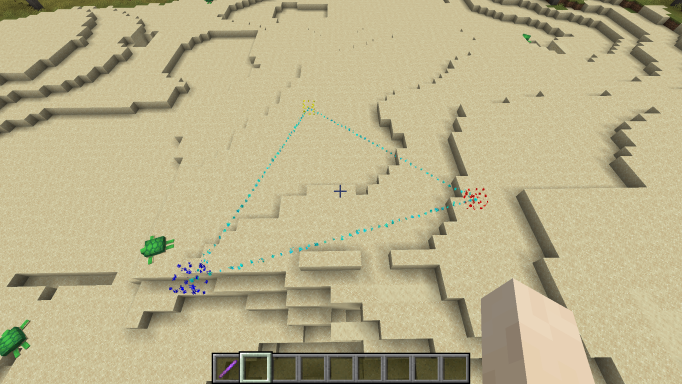
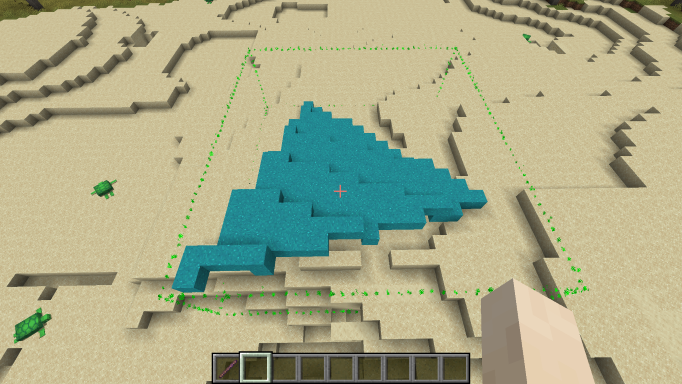
To set pos, use “/bv pos” command or use pos-marker. Pos-marker is a useful tool to anchor block positions. When left-clicking block, the clicked block position is marked as index 0 position. The successive right-clicking block marks the clicked block position as the next index position.
> See also “Pos-related Commands” of Run Commands section.
Run Commands
To change something in the world by this add-on, you need run some commands. As mentioned above, this wiki will not cover all the commands, but the following list may help you to understand what commands you can run in this add-on.
* Pos-related Commands
Pos array is used to make a region of the world as mentioned above. To set a pos of the index, run “/bv pos <index> <posX> <posY> <posZ>” command. To create a new array of a length, run “/bv pos-array create <length>” command. To get a pos-marker, run “/bv pos-marker” command.
* Affine Transform Commands
Affine transform commands are the following 5 commands; translate, rotate, scale, reflect, and shear. These commands affine transform the selected blocks.
The blocks are selected by various ways. Pos array is one way for selection. For example, the length 2 pos array will select the cuboid region which corners are pos 0 and pos 1.
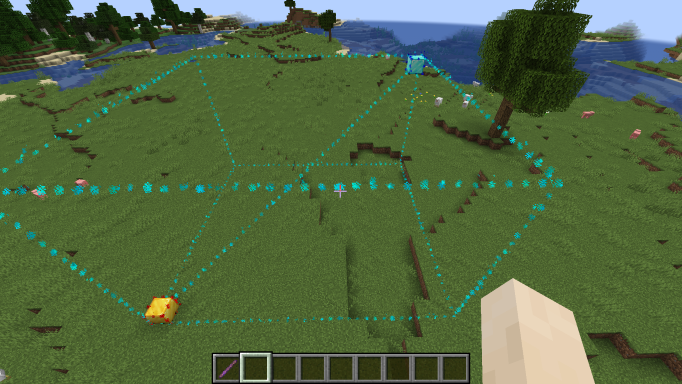
Setting blocks like pasting, filling, or making will also select the region which holds the set blocks. Select Commands
are the other ways to select complicated shape region like cylinder or torus.
Affine transform commands can be combined any times, which enables you to make a favorable affine transformation for you.
* Fill and Replace Commands
Fill and replace commands both set blocks in the selection. Fill command simply set blocks. Replace command replaces the specified blocks to other ones.
* Subcommands of fill Commands
Subcommands of /bv fill enables you to make various shapes that cannot be done by default /bv fill command.
* Clipboard Commands
Copy, cut, and paste are the basic operations in editing add-on. BuildVox also provides you with the ability to do these operations. After pasting, you can modify its position and shape by affine transform commands.
* Select Commands
Using /bv select commands is alternative way to make selections. The subcommands of select takes the same parameters to specify a shape as the corresponding fill subcommands. After running commands, you will see the particle lines make a rectangular. You may become uneasy whether the command was successful, but this is the right outcome now.
> This list does not cover all the commands. Run commands with “-h” flag to see help for further understanding of the commands.
Add a comment