


 Get 0.05 TON 💎
Earlier Versions
| Name | Size | Uploaded | Game Version | Downloads | |
| color_block-1.16.4-1.4.3.jar release | 107.52 KB | Nov 3, 2020 | 1.16.5 | 1,689 |  Download |
| color_block-1.16.3-1.4.2.jar release | 107.46 KB | Oct 24, 2020 | 1.16.3 | 351 | Download |
| color_block-1.16.3-1.4.1.jar release | 107.47 KB | Oct 4, 2020 | 1.16.3 | 195 | Download |
| color_block-1.16.3-1.4.0.jar release | 102.29 KB | Sep 30, 2020 | 1.16.3 | 18 | Download |
Screenshots


Description
THIS IS FOR MINECRAFT/FORGE 1.16.4/35.0.0 AND NEWER! (Only 1.16.x)
Support: https://discord.gg/8pUpWCEUe2
Color–Block–Mod
I'm partnered with Bisect Hosting:

Are you interested in hosting a Minecraft server? Bisect Hosting offers you an easy to use Control panel to customize your server. They have locations all over the world, with ensuring low latency. After purchase you only need to join your server and can play directly without having to configure anything. Use Code SHRINES to get 25% Off in your first month! Great to play with friends!
You can color the ColorBlock in every RGB Color. You can customize the Color with Minecraft Dye, an MultiDye Item for Random Colors, a Color-Tool or an GUI
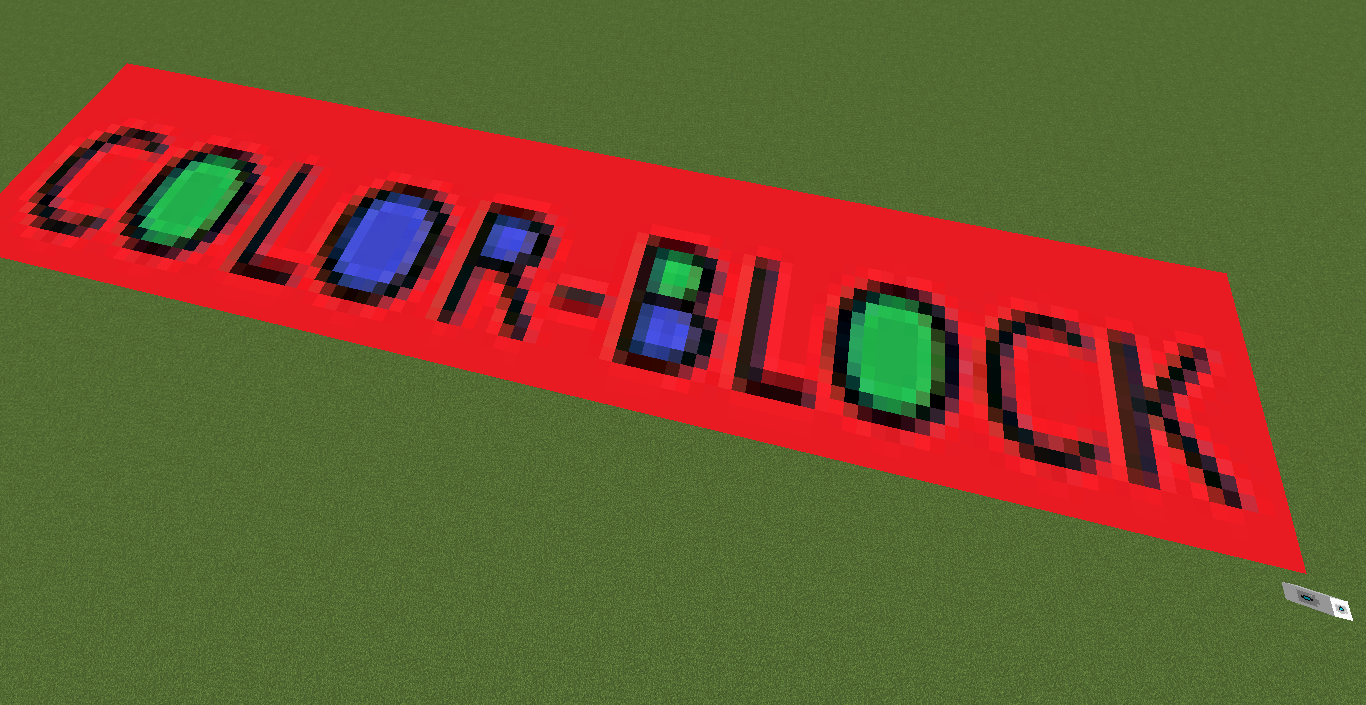
With the Dye in your Hand you simply click on the placed ColorBlock and the Color will update itself
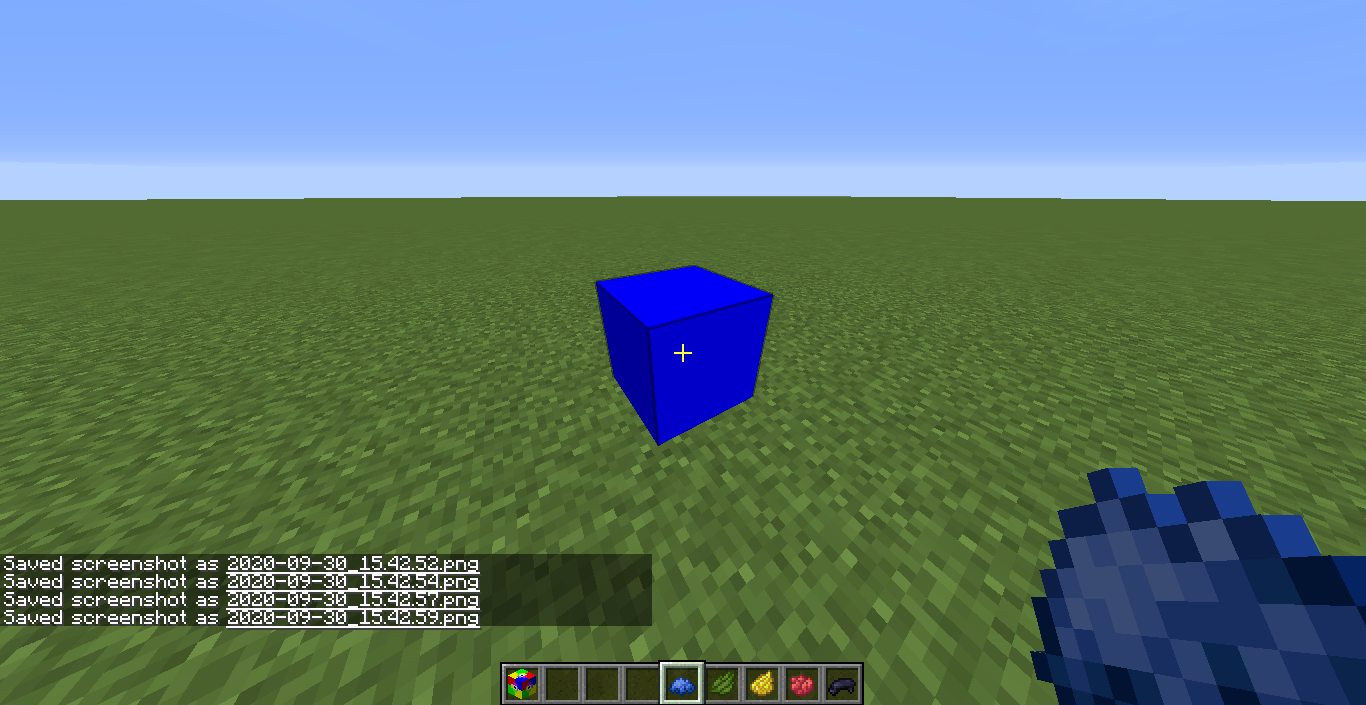
The same way you use the MultiDye
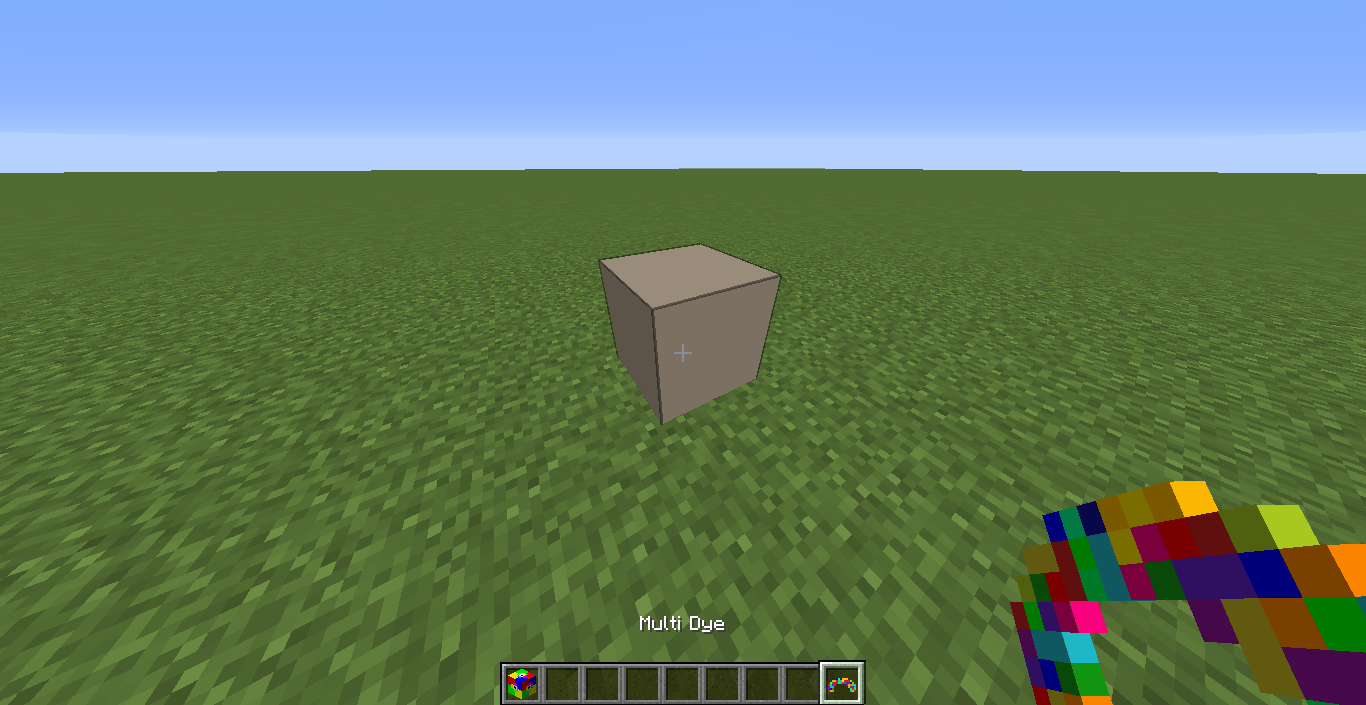
You can use the ColorTool in two ways:
1. You use it like Dye and set the Color in an Anvil, like you rename a Item, then click on the Color-Block.(Decimal-RGB Colors are needed)
2. Sneak-click om an already colored ColorBlock and the ColorTool will have this Color als Name. Then click on the ColorBlock and it will update the Color like the 1. way
You can open the GUI when you have nothing in your hand. There is a TextField and a Button
In the TextField you write the Color you want the Block to have. With the Button you can choose the Numberingsystem you want to use for the Color.
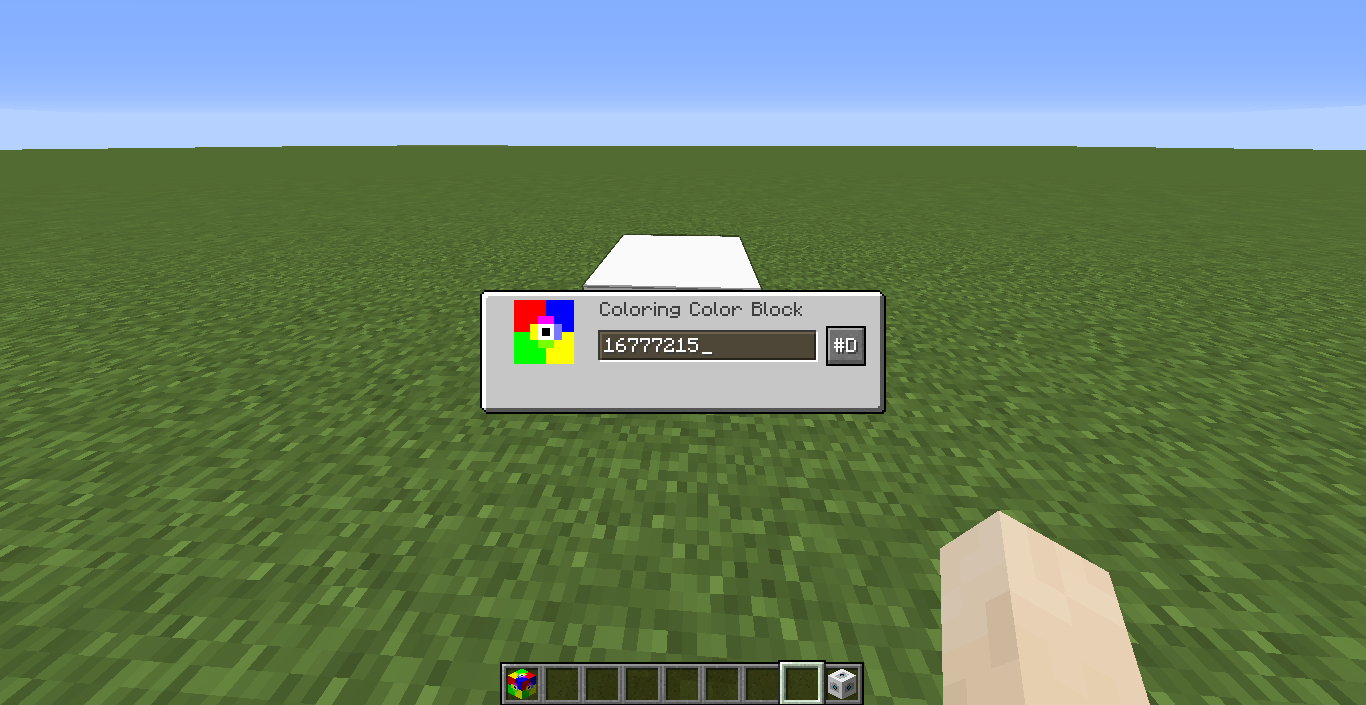
IMAGE-BLOCK
With the ImageBlock you can Import Images from your Filesystem in Minecraft. In the GUI you can write the Path of the Image or choose it with the ImportButton.
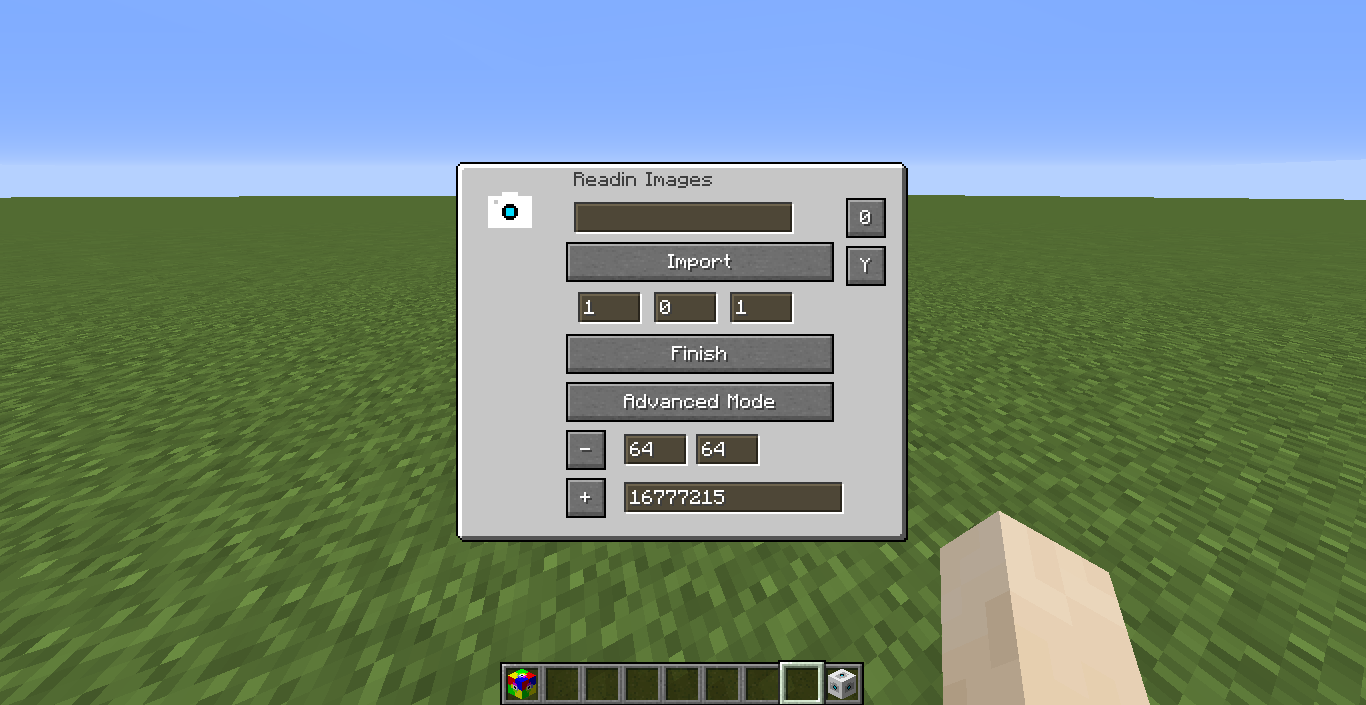
You can Rotate the Image or choose the Axis of the Image. With three textfields you can set an Offset to the Block. With the "Finish" Button you build the Image.
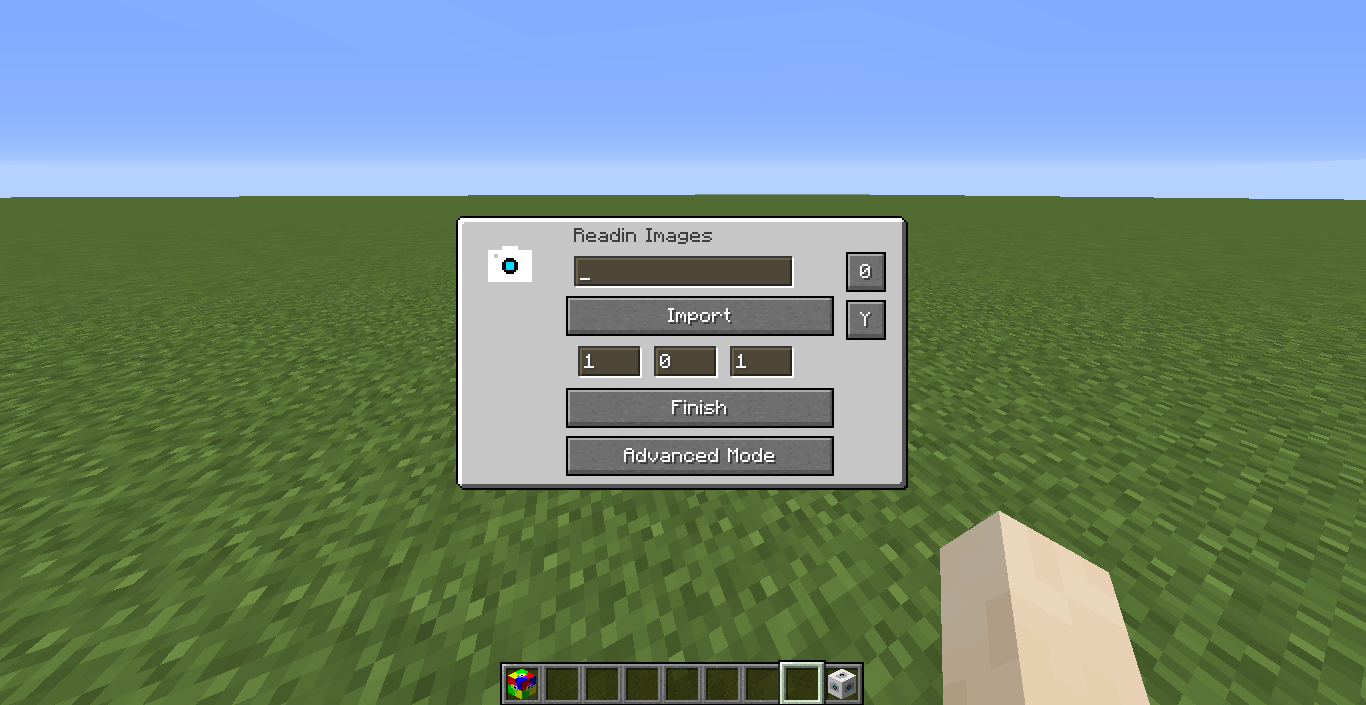
Everyone who wants more Options can click the Advanced Mode Button to open the Advanced Mode, where you can choose an max Image Size or if you want empty pixels to be filled
What is the Image Block doing?
– It will place Color Blocks, which are configured to the RGB Color of the Image
– In the Config of the Image Block, you can only change in which rotation or Axis the Image is build.
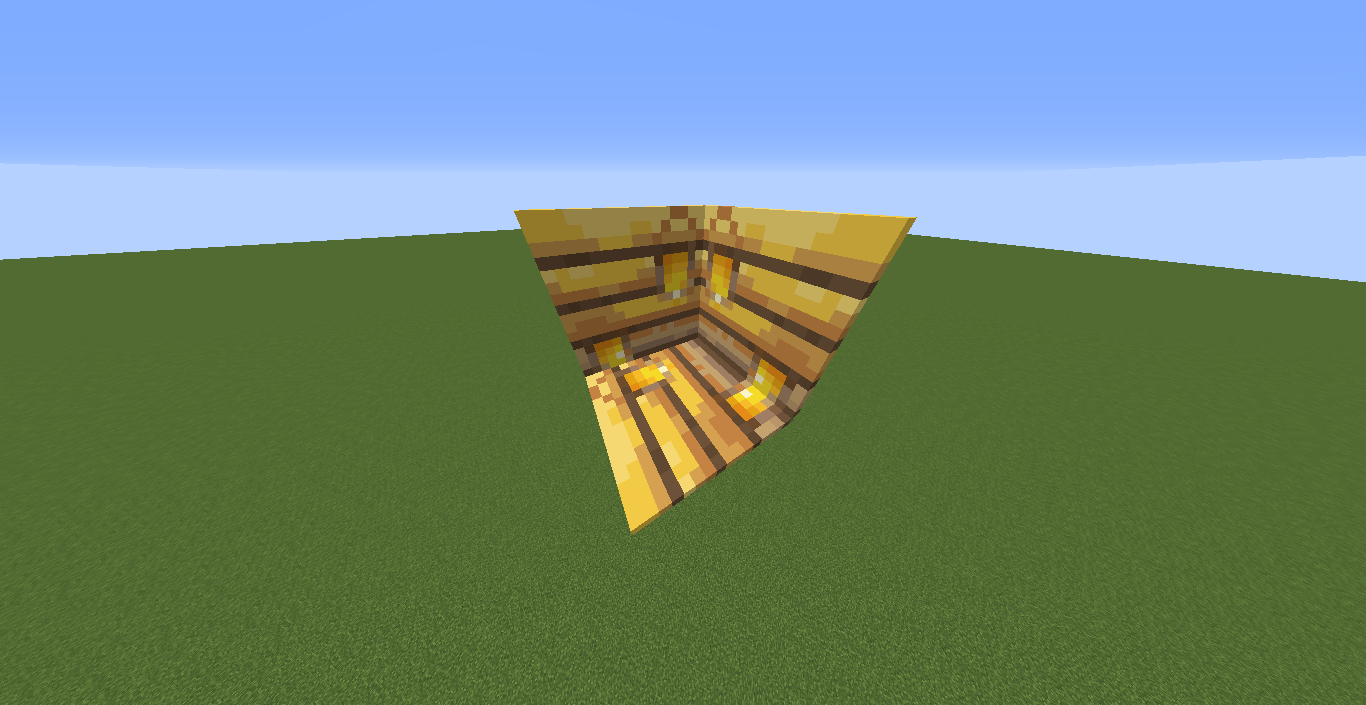
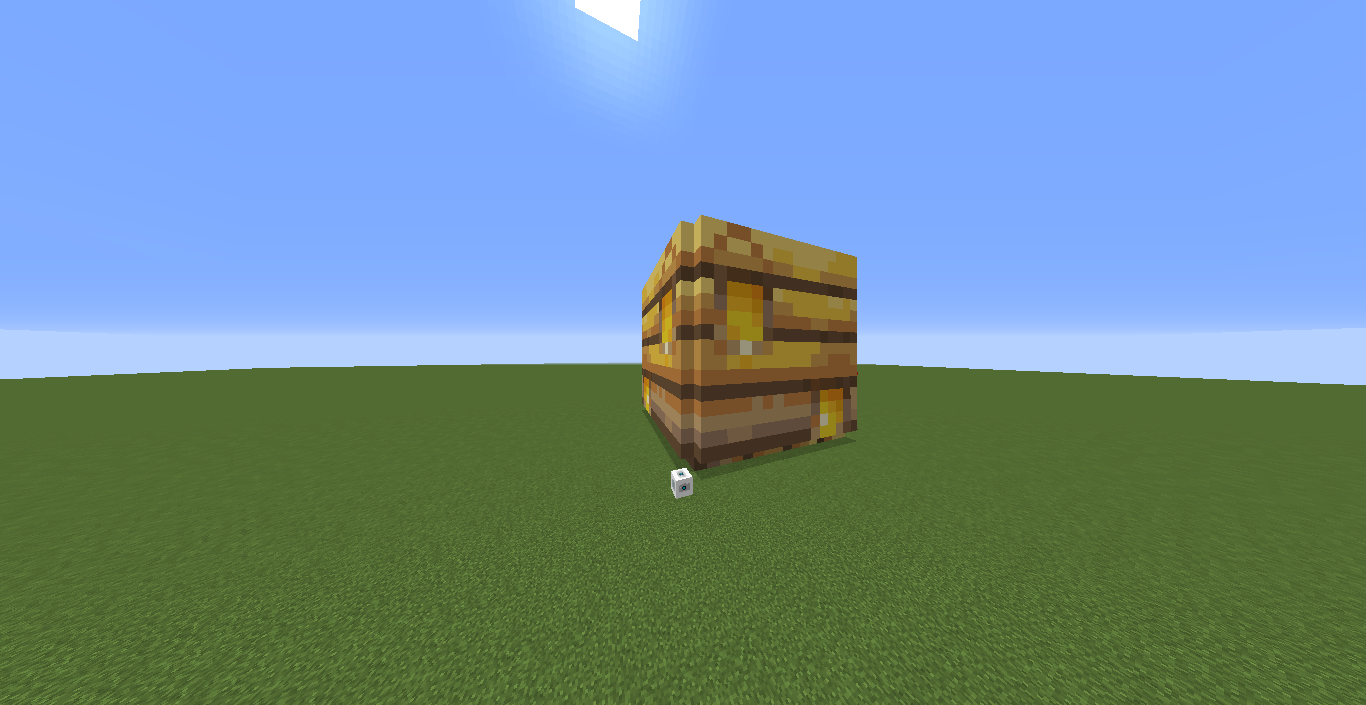
The "Undo" Button allow Players to remove Images which aren't like they want. Be careful with the "Fill Empty Pixel" Setting, because Blocks, which are replaced with Air, can't come back.
Overwritten Colors from other Images can't be undone.
Take care!
Add a comment