


 Get 0.05 TON 💎
Earlier Versions
| Name | Size | Uploaded | Game Version | Downloads | |
| SlackIntegration v1.1 release | 15.45 KB | Jan 14, 2016 | CB 1.7.9-R0.2 | 365 |  Download |
| SlackIntegration v1.0 release | 13.21 KB | Sep 13, 2015 | CB 1.7.9-R0.2 | 198 | Download |
Description
This plugin allows for the communication between your Minecraft server and Slack.
Slack GUI
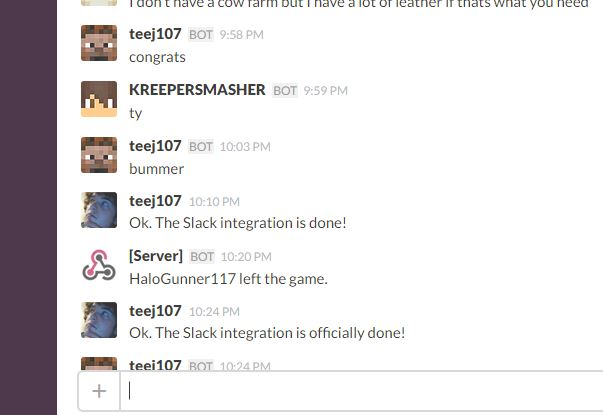
The Slack GUI does not come with the plugin!
Features
- Minecraft server chat and other events get sent to Slack
- Slack messages can be sent to your server
- Multiple/single Slack channel support
- Shows player heads in Slack
- Customize message format that is sent from Slack to the server.
Commands
- /slack url [url] – Get and set the Webhook URL
- /slack port [port] – Get and set the listening plugin port
- /slack token [token] – Get and set the Token
- /slack add <channel> – Add a channel to the list of channels to send the chat to
- /slack remove <channel> – Remove a channel from the list of channels to send chat
- /slack channels – List all the channels that the chat is being sent to
- /slack format [format] – Get and set the format when a Slack message is sent to the server
- /slack reload – Reloads the plugin config
- /slack deaths [true|false] – Get and set whether deaths will be sent to Slack
- /slack achievements [true|false] – Get and set whether achievements will be sent to Slack
All of the commands require the slack.use permission
How to setup
For Slack
- Go to your Team Settings
- Go to the Integrations page
- Enable the Incoming WebHooks integration
- In the Incoming WebHooks settings, select the channel to post to and take note of the WebHook URL
- Enable the Outcoming WebHooks integration
- In the Outcoming WebHooks settings, select the appropriate channel to listen on
- Input the server address with the plugin's port (found in config) in the URL(s) section. http://<server address>:<port>/
- Take note of the Token
For Plugin
- Set the WebHook URL (found in the Incoming WebHook settings) in the config or via command
- Set the Token (found in the Outcoming WebHook settings) in the config or via command
- Add the appropriate slack channel names in the config or via command
- Reload the plugin
When done properly, you should be able to see messages sent from the server on Slack and send messages to the server via Slack.
https:github.com/teej107/SlackIntegration


Add a comment